


Artvilize: AI Video Generator
4.832.00 Reviews
App Specs
- Version
- 1.7.3
- Updated On
- License
- Free
- Downloads
- 1,000,000+
- Developer
- Astronex
- Categories
- Photography
- Platform
- Android
Screenshots
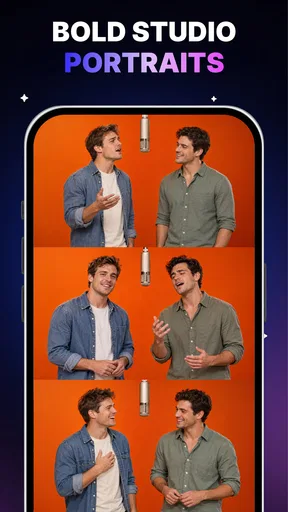
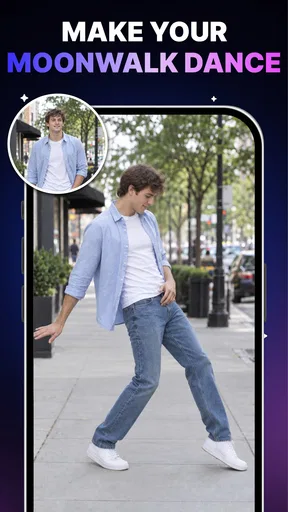
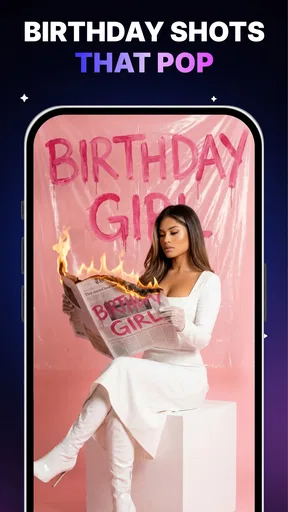
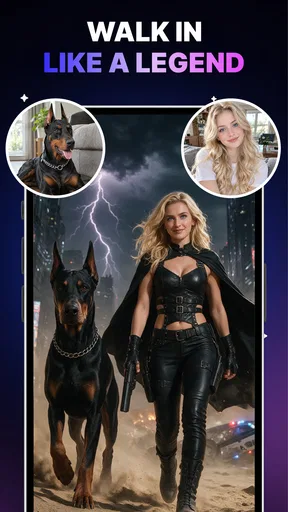
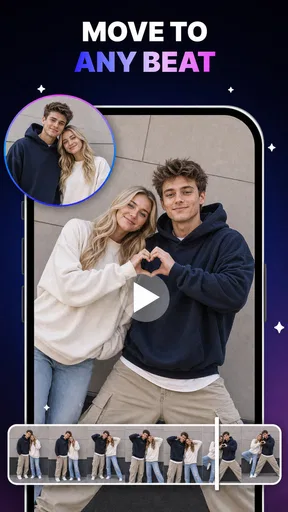
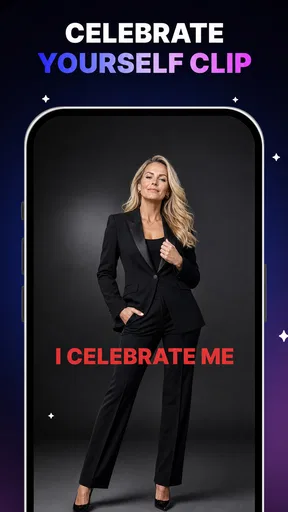
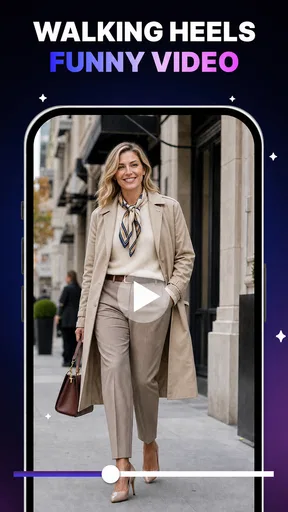
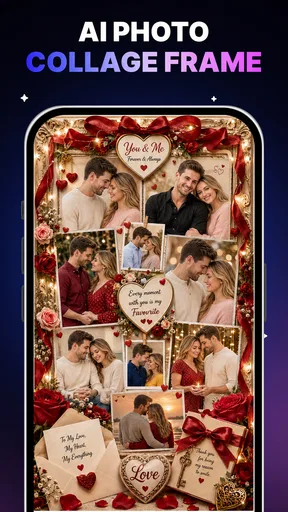
 Analysis by AppCompare
When I first opened Artvilize: AI Video Generator, I treated it as a way to give one photo a new purpose, not as a replacement for a full video editor. That distinction matters. This photography app is built around transforming still images into animated video, AI dance-style clips, or collages. It is for people who want a shareable result without starting with a timeline, a folder of footage, or a long editing session.
The appeal is the simple starting point: choose a photo, then decide what kind of result you want. But quick creation does not mean every image will work equally well, or that an AI-generated result will match your idea exactly. I find it helps to treat the first attempt as a small creative experiment: choose a clear image, pick a direction, review the result, and then decide whether to refine or share it.
What to expect from a one-photo creation app
Developed by Astronex, Artvilize is free to install, with optional in-app purchases. It has an average rating of 4.8 from around 5,600 ratings and more than a million installs. Those figures show that plenty of people have tried it, but they do not tell you whether its style suits your taste. The more useful question is whether you want a fast, playful transformation from a photo rather than detailed control over every frame.
The central idea is straightforward: start with a still image, then make a video-like result, an AI dance, or a collage. That makes it different from a conventional camera app, which focuses on capturing and correcting pictures, and from a full video editor, which is designed around clips, tracks, and detailed timing. Artvilize sits between those approaches. It offers a quick route from image to a finished-looking piece, while giving up some of the control a manual editor provides.
For a first-time user, that trade-off works well for a fun post, a greeting, or a visual experiment. It is less suitable when a project has exact requirements, such as a particular sequence, carefully timed captions, or consistent movement across several shots. I would use it to make one image more entertaining, not to assemble a polished multi-scene video or guarantee a particular animation.
Start with the photo, not the effect
The most useful decision happens before you tap a creation option: pick an image with a clear subject. A well-lit portrait, with the person visible and not crowded by other faces or objects, is a sensible first choice for an animated or dance-style result. A busy group photo may be meaningful to you, but it can make it harder to judge what the transformation is doing. For a collage, by contrast, a small set of related images may suit the idea better than one carefully composed portrait.
This is not a guarantee about how any individual output will look; it is a practical way to reduce avoidable disappointment. If the first result seems odd, try changing the source photo before deciding that the app is unsuitable. Use a less obstructed face, a clearer crop, or a picture with a simpler background. Changing one thing at a time also helps you work out whether the subject, framing, or chosen style made the difference.
Worth Reading Before You Choose

EA SPORTS FC Mobile 26 Is a Bigger Football Game, but It Takes Time

Flipboard Shows What News Apps Must Do Beyond the Feed

Switching to Android Auto Means Rethinking Your Driving Routine

Google Calendar Makes a Crowded Week Easier to Manage

Ludo King Makes the Most of the Minutes Between Plans

Baby Panda World Brings Quick Play to Modern Phones, but Its Game Library Feels Busy
A reassuring route to your first result
After installing the app, I would begin with a photo I am comfortable using and a low-stakes idea, such as a playful clip for a friend. Choose the closest matching creation type, follow the on-screen steps, and give the first result an honest look before trying another. The goal is not to find every option immediately; it is to complete one small creation and learn what kind of image and style work for you.
If you are choosing between a video, dance-style animation, or collage, decide based on the intended audience. A moving effect can make a single portrait feel lighthearted; a collage is more suitable when the story lies in the relationship between several pictures. I would not start by testing every direction on the same image. That can make the experience feel repetitive and makes it harder to tell what you actually prefer.
A realistic first use might be a birthday message. I would select a clear portrait of the person, try a playful animated treatment, and share the result only if it feels like something they would enjoy. For a more sentimental message, I would lean toward a collage of relevant pictures instead of an unexpectedly comic movement effect. Thinking about the recipient first is a simple way to avoid making something technically amusing but wrong for the moment.
How to judge the first output
Look at the result as a complete piece, not only at whether it moved. Does the subject remain easy to recognize? Does the mood suit the person or occasion? Is the background distracting? These checks are more useful than expecting the app to reproduce a precise motion you pictured in your head. The experience is strongest when you are open to a creative interpretation and weakest when you need exact choreography or a specific, repeatable shot.
If it is close but not quite right, change one element for the next attempt. Use a tighter crop if the subject feels too small, or a simpler photo if the scene looks confused. If the chosen style feels wrong, try a different creation type rather than repeatedly using the same image in a similar way. Small, deliberate adjustments are more useful than making many random attempts and hoping one happens to work.
Before sharing, watch the whole result once and consider whether it still makes sense without your explanation. A friend seeing it on a phone should understand the joke, greeting, or visual point quickly. If it needs a long explanation, a straightforward photo or a manually edited clip may communicate better. That is not a failure; it is a useful sign that the generated format is not right for that image.
Common points of confusion
One easy misunderstanding is expecting “AI video” to mean a conventional video editor with detailed controls. Artvilize’s premise is a quick transformation from a photo, so your main creative choices are the source image and the type of result to pursue. If you need to arrange several recorded clips, control precise cuts, or add carefully timed audio, a dedicated editor is likely to be more comfortable.
Another is assuming a dance-style result will suit every portrait. The idea is inherently playful, and the effect may feel out of place in a formal headshot, a memorial image, or a professional profile. I would keep those uses separate. For a joke among friends or a casual social post, the playful quality can be the point; for a serious announcement, a clean photograph is usually safer.
It is also worth distinguishing a free install from a promise that every possible use is free. Artvilize is free to download, but it offers in-app purchases, with listed item prices ranging from $9.99 to $38.99. I would explore the basic experience and decide whether the results meet my needs before considering a purchase. If an option presents a cost, pause and read what is being offered rather than assuming it is necessary for a first successful creation.
The app is rated for Everyone, which makes it broadly approachable, but that does not mean every generated image is automatically appropriate for every audience or situation. I would still review a result before sending it, particularly if it uses a real person’s photo. A quick personal check—would this person find it funny, flattering, or uncomfortable?—is good judgment for any tool that transforms someone’s image.
Where it fits among photography and video tools
Compared with ordinary photo filters, Artvilize’s appeal is that the output can feel more like a small piece of entertainment than a corrected picture. Compared with social video editors, its one-photo starting point is less demanding, but it is not the tool I would choose for layered editing or a carefully planned story. It works best as a companion rather than an all-purpose replacement: keep a standard editor for projects that need deliberate structure, and use this app when one image is enough to carry the idea.
It may also be the wrong choice if you mainly want to preserve a photograph faithfully. The point here is transformation, so anyone seeking subtle color correction, natural retouching, or precise image adjustments should look for a photography editor focused on those tasks. Likewise, if you need a dependable result for a client or formal presentation, a workflow with manual control is usually more predictable than an AI interpretation.
For a casual user, the reduced setup can be a real advantage. You do not need to film a new scene just to try a visual gag, and you can begin with a photo already in your collection. The trade-off is that the source image carries much of the burden. A strong, simple picture gives the app a better starting point; a weak or cluttered one can limit the result regardless of how appealing the idea sounds.
Who should give it a try—and who should pass
I would recommend Artvilize to someone who enjoys experimenting with portraits, wants a quick way to make a greeting more lively, or likes sharing playful visual transformations. It also suits a first-time creator who finds a traditional editing timeline intimidating. The current version is 1.7.3, and the minimum operating system is 7.0, so check that your device meets the requirement before getting started.
I would suggest skipping it if your priority is detailed manual editing, consistent professional output, or fine control over movement and timing. It is also not a natural fit for people who only want to organize and improve still photographs. In those cases, a conventional photo editor or a full video editor is better matched to the job, even if it takes longer to learn.
My practical advice is to make the first test personal but low-pressure: pick one clear photo, choose a style that suits the person in it, and judge the result by whether you would genuinely send or share it. If you enjoy the surprise and can accept that the outcome may be more playful than precise, it offers an easy creative detour. If you need certainty and control, keep your original image and use a more hands-on tool instead.
A useful way to decide whether to keep using it
After your first creation, ask what you wanted the photo to do that it could not do as a still image. If the answer is “make a friend smile” or “turn a few related pictures into a small keepsake,” the app’s focused approach is a good match. If your answer is “tell a story with several scenes,” you are likely to spend less time and get a more predictable result in a conventional editor.
For example, if I had a favorite portrait from an ordinary day and wanted to send a lighthearted message in a group chat, I would try a short transformation before opening a more complex editing app. If the image were for a work announcement, I would choose the original photo or a manually prepared design instead. The important distinction is not whether AI effects are good or bad; it is whether the result fits the person, audience, and purpose.
My bottom line: Artvilize is most convincing as a quick, photo-led creativity app, not as a substitute for a full editing suite. Its simple starting point makes a first attempt approachable, while thoughtful image selection and realistic expectations make the experience better. I would try it for a casual clip or collage, review the result before sharing, and move to a more controlled editor when the details matter.
Pros
- Turns written prompts into short AI-generated videos.
- Offers a straightforward workflow for creating clips.
- Useful for quickly exploring visual ideas and concepts.
- Can help create social media content without filming.
- AI generation makes each result feel distinctive.
Cons
- Generated scenes may not match the prompt precisely.
- Video quality and coherence can vary between results.
- Complex prompts may produce unexpected details.
- Creating polished clips may require several attempts.
- AI-generated content may need editing before sharing.
FAQs for Artvilize: AI Video Generator
What is Artvilize: AI Video Generator?
Artvilize: AI Video Generator is an app designed to create videos with the help of artificial intelligence. Depending on the tools available in your version, you may be able to turn written prompts, images, or other inputs into short visual clips. It is intended for creative projects and social content, but generated results can vary, so review each clip and its options before sharing or relying on it.
How do you create a video with Artvilize?
A typical workflow is to choose a creation tool, provide a text prompt or supported image, select any available style or settings, and start generation. Clear, specific prompts generally give the AI more direction, though they cannot guarantee a particular result. Generation time and the steps shown may depend on your device, connection, selected features, and app version. Check the in-app instructions before submitting content.
Is Artvilize: AI Video Generator free to use?
The app may be available to download without an upfront charge, but some features or continued use could require in-app purchases, a subscription, or usage credits. Pricing and free-generation limits can change, so check the app’s store listing and payment screen for current terms before confirming a purchase. If a trial is offered, read its renewal and cancellation conditions carefully to avoid unexpected charges.
Does Artvilize require an internet connection, and what permissions might it need?
AI video generation commonly relies on online processing, so a stable internet connection may be needed to create or retrieve videos; some other app functions could work differently. If you want to use photos or save finished clips, the app may request access to your selected media or device storage. Grant only permissions needed for the task, and review the app’s privacy information to understand how submitted content is handled.
Can I use Artvilize-generated videos commercially or share them anywhere?
Being able to create or export a video does not automatically mean it is cleared for every commercial use or platform. Before publishing, review Artvilize’s current terms for ownership, licensing, attribution, and any restrictions on generated content. You should also make sure prompts, images, music, faces, and other source materials are yours to use, and follow the rules of the service where you plan to post the video.


